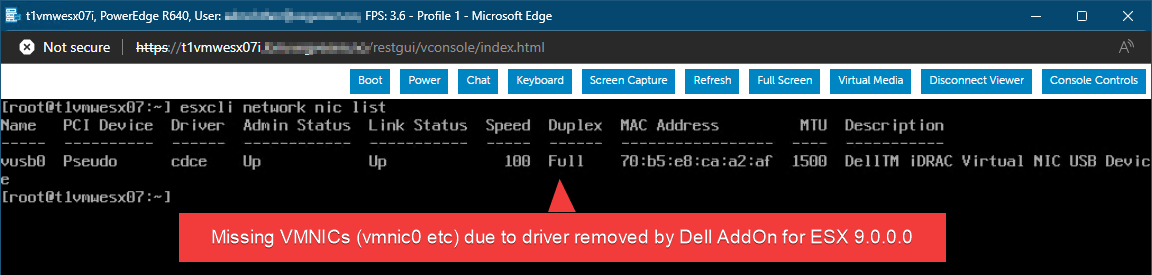
Summary: Upgrading Dell servers equipped with QLogic QL41xxx network adapters to ESX 9, using either the Dell AddOn 9.0.0.0-A00 or the Dell-customized ESX 9 ISO, will remove the QL41xxx vmnic driver, effectively disabling network connectivity. A workaround for this issue (driver reinstallation) is provided below.
⚠️Note: this is not a supported configuration for running ESX 9 on Dell servers, and should not be used in production environments.
With Broadcom’s release of ESX 9 (the “ESXi” name is being phased out), we’re seeing a new wave of deprecated and end-of-life (EoL) hardware. While some of the unsupported devices are clearly outdated, others are still actively supported by OEMs like Dell and HPE under current support contracts, just not in ESX 9. William Lam has also written a post about unsupported devices.
Personally, I find it puzzling that Intel Xeon Scalable Gen 1 CPUs (e.g. the 6100 series) are no longer supported. Dell’s 14th-generation servers originally shipped with these CPUs, and many were later refreshed with 6200-series chips. With Gen 1 now EoL in ESX 9, it means roughly half of all Dell 14G servers can’t run ESX 9, a significant portion, by any estimate. I assume the same is true for HPE and other vendors. The kicker? The same server becomes supported again if you swap in a 6200-series CPU. Go figure.
Anyway, the real focus of this post is the EoL status of QLogic FastLinQ QL41xxx 1/10/25 GbE Ethernet adapters, and similar models. At one customer site, several perfectly functional Dell 14G servers (equipped with supported Xeon 6200-series CPUs) include these NICs. While Broadcom’s documentation (KB 391170, “Deprecated devices in ESXi 9.0 and implications for support”) lists several QL41xxx-based NICs from Cisco, Fujitsu, Lenovo and QLogic itself, as still supported, Dell appears to have EoL’ed their versions of the QL41xxx.
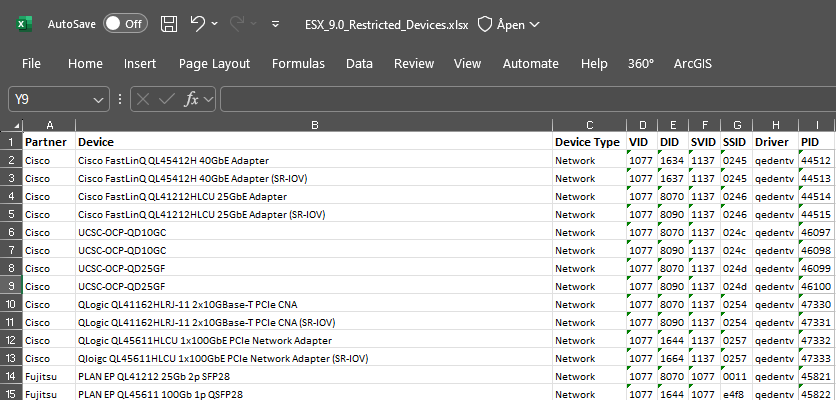
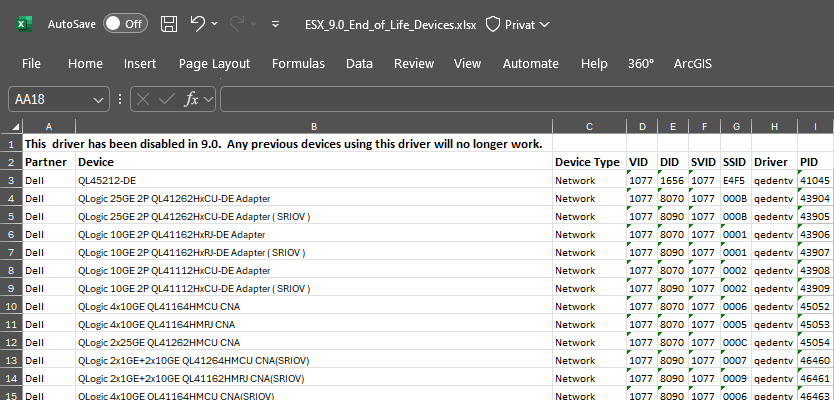
So, if you’re planning to upgrade to ESX 9 on Dell hardware, especially using Dell’s AddOn or custom ISO, watch out. The QL41xxx driver will be removed, and without it, you’ll have no network.
The issue/problem
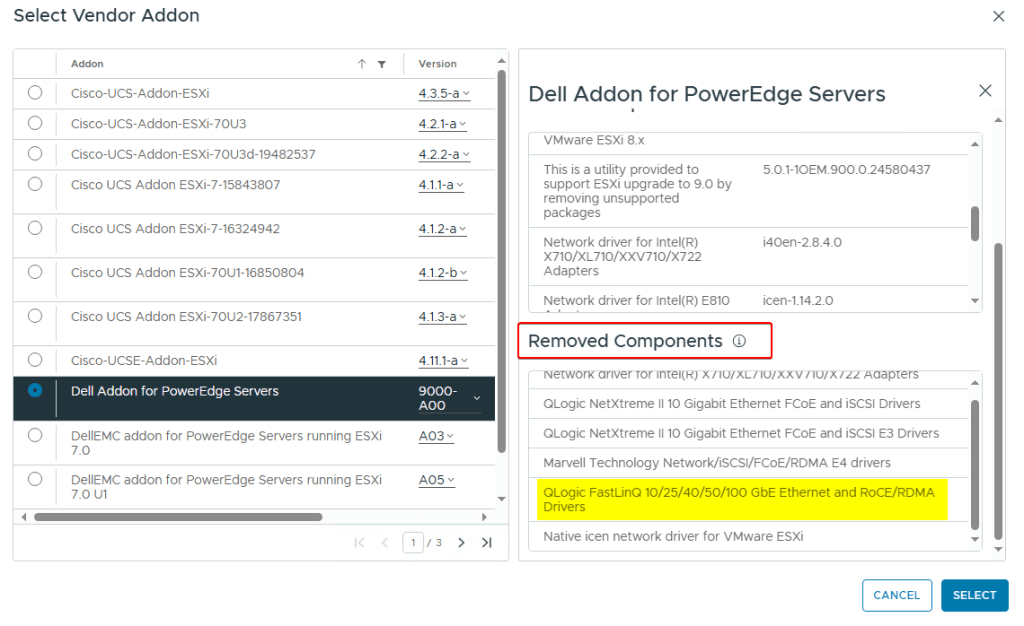
When upgrading a Dell server with a QL41xxx NIC to ESX 9 using the Dell AddOn package or Dell ISO, the qedentv driver (among others) is removed. This is clearly stated in the AddOn details when applying it to the vLCM image in vCenter 9. So yes, the information is available, but realistically, how many of us read that thoroughly before proceeding?
After remediating a host to ESX 9 that uses a QL41xxx (or another deprecated NIC driver), the host will typically reboot successfully, but fail to reconnect to vCenter, because it now lacks a functional network driver.
In vCenter and vLCM, you’ll be left waiting indefinitely at the “Started to reboot host” task until it times out, as the host becomes unreachable.
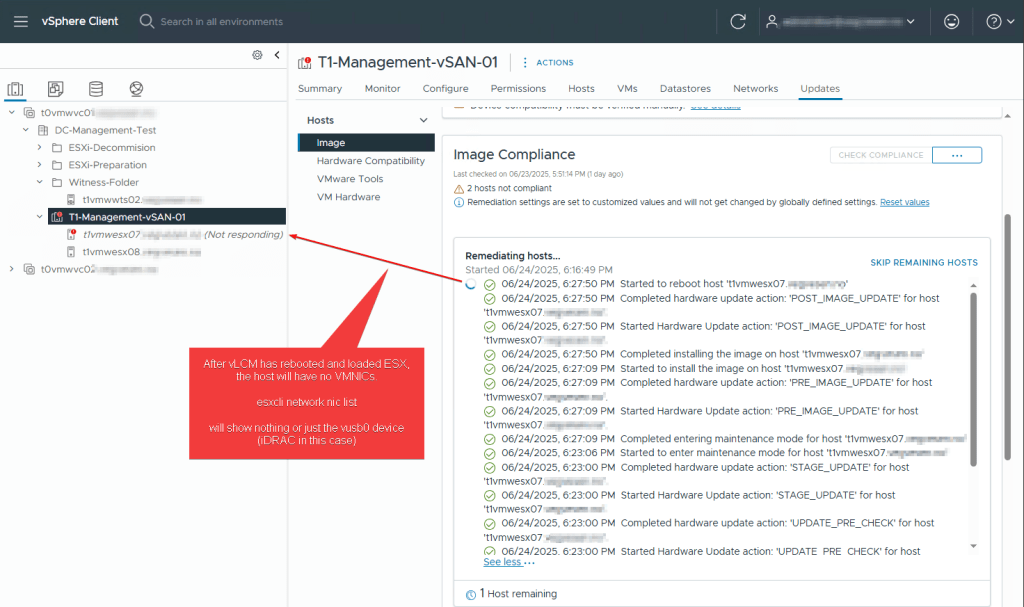
When logging into the ESX Shell via iDRAC Console or directly at the server, you’ll quickly notice that the network drivers are missing, there are no vmnic interfaces available.:
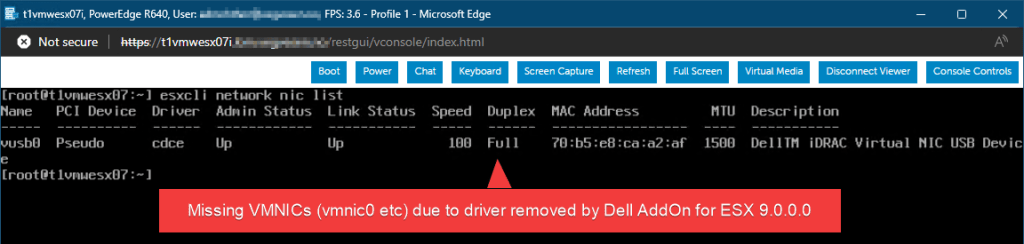
To bring the host back online with network access, the missing driver needs to be reinstalled.
In my case, the servers were running vSAN only (or any IP-based storage, really), so I had no way to copy the driver to an accessible datastore from other hosts.
If the environment had shared Fibre Channel (FC) storage, I would have the FC-backed datastore mounted and I could copy the driver there for installation.
But in this case, the only viable options was to use a USB stick on-site, or, as I did, leverage Dell iDRAC’s Remote Media and Virtual Console features to mount the driver ISO remotely.
Reinstall QL41xxx driver on ESX 9
Grab the ‘qedentv‘ driver from HPE (!) repository here: https://vibsdepot.hpe.com/hpe/jun2025/esxi-900-devicedrivers/.
Direct link to the driver at the time of publishing: https://vibsdepot.hpe.com/hpe/jun2025/esxi-900-devicedrivers/MRVL-E4-CNA-Driver-Bundle_6.0.410.0-1OEM.800.1.0.20613240_24647792.zip
Next, we need to create an image file containing the driver, which can be mounted via iDRAC as virtual media that ESX 9 can read from.
I’m using a simple Linux VM to prepare the image. First, copy the driver ZIP file into the VM (or download it directly inside), then generate the image file. After that, you’ll need to copy the .img file out of the Linux VM, unless you’re able to access iDRAC through a browser inside the VM, in which case you can mount it directly.
Commands to run:
# Create a blank image file of 10 MB in /tmp. Then format it as FAT
dd if=/dev/zero of=/tmp/qedentv.img bs=1M count=10
mkfs.vfat /tmp/qedentv.img

# Mount the file and copy the zip bundle into the image file and unmount it again
sudo mkdir /mnt/myimg
sudo mount -o loop /tmp/qedentv.img /mnt/myimg
sudo cp MRVL-E4-CNA-Driver-Bundle_6.0.410.0-1OEM.800.1.0.20613240_24647792.zip /mnt/myimg/qedentv.zip
sudo umount /mnt/myimg
We have now created an IMG file with the HPE copy of 'MRVL-E4-CNA-Driver-Bundle_6.0.410.0-1OEM.800.1.0.20613240_24647792.zip‘ bundle, and for simplicity I would named it ‘qedentv.img‘, but you can name the IMG file whatever you like.
Copy ‘qedentv.img‘ to a place you can mount it as a Removable Disk in iDRAC Virtual Media on the server(s). In the example screenshot below, I actually had used the long full bundle name on the IMG file:
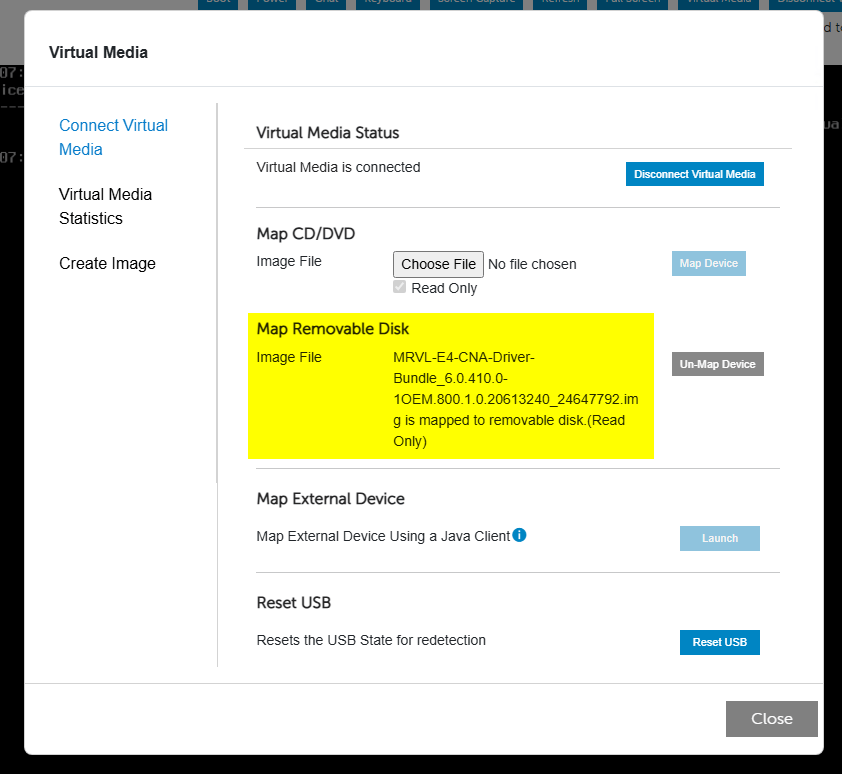
From ESX Shell, copying the file to /tmp/ and install the driver:
/bin/mcopy -i /dev/disks/mpx.vmhba32\:C0\:T0\:L1 ::/qedentv.zip /tmp/
esxcli software vib install -d /tmp/qedentv.zip
This driver bundle will REMOVE a dellupgrade package, which are the reason for the driver being removed in the first place:

Reboot the host and you should now have network connectivity again:

Update the vLCM image profile
Unless you update the vLCM image profile attached to the cluster, you’ll face the same issue again the next time you remediate the host. Even after reinstalling the driver manually, the host will be marked “out of compliance” in vLCM.
Fixing it properly: Add the driver to your vLCM image
- Import the driver bundle into vLCM (e.g., via Lifecycle Manager → Actions → Import Updates).
- Edit the image profile attached to the affected cluster.
- Under “Add Components”, enable the option to show all components.
- Locate and add the following driver: Marvell Technology Network/iSCSI/FCoE/RDMA E4 drivers v6.0.410.0-1OEM
- Validate and save.
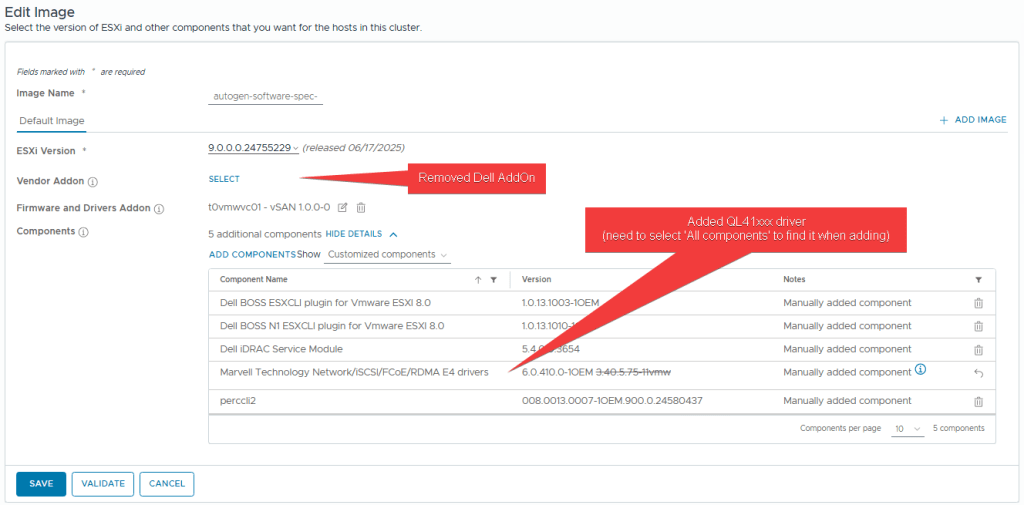
Important note: If the Dell AddOn is still selected in your image profile, attempting to validate or save will fail, typically with warnings or conflicts, as shown in the screenshots below.
This happens because the AddOn explicitly removes the driver you’re trying to include, creating a direct conflict.
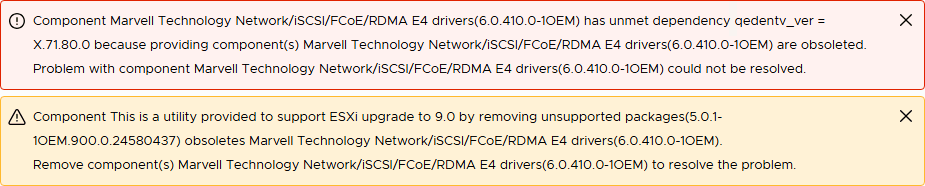
To resolve the conflict and retain network functionality, you’ll need to remove the Dell AddOn from the image profile entirely.
If needed, you can manually add back the individual components the AddOn typically includes, just be sure to exclude the component that removes the QL41xxx driver (see screenshot below for reference).

✅ I’ve successfully tested this workaround by updating test-hosts at a customer site from ESX 9.0 GA to 9.0a, and this time, network connectivity was preserved.
🧵 Conclusion
Broadcom’s changes in ESX 9 introduce several driver-level challenges, especially for still-capable Dell 14G servers. By carefully adjusting the vLCM image profile, removing the Dell AddOn and manually including the necessary components, you can maintain compatibility and avoid losing network connectivity during updates.
This workaround isn’t officially supported, but it keeps your systems running while extending the life of solid hardware.
 VMnic
VMnic 