Reading the documentation for vRealize Network Insight (vRNI), you find this:
Currently, vRealize Network Insight supports only UDP for communication between vRealize Network Insight servers and remote syslog servers. So ensure that your remote syslog servers are configured to accept syslog traffic over UDP.
VMware vRNI Docs
The link in the annotation above shows you how to configure syslog forwarding over port 514/UDP.
I will however, show you how to configure vRNI for a secure, encrypted, log forwarding to vRealize Log Insight (vRLI) using a well kept secret – the vRLI Agent (“liagent”). Both platform and collector (sometimes referred to as proxy) have the vRLI Agent installed. The article was inspired by a blogpost over at lostdomain.org and my own comments in that post, and resulted in this detailed blog post when it comes to the configuration and SSL encryption.
The vRLI Agent can only be configured via CLI, not via the vRNI WebUI. You should disabled the syslog forwarding in the WebUI if you use the vRLI Agent, so you don’t get the logs forwarded twice.
Upgrading vRNI, or reconfiguring the vRLI settings via the consoleuser will most likely overwrite the changes.
Possible bug in vRNI with vRLI Agent?
Before we go ahead and configure the vRLI Agent (correctly), I want to let you know of a discrepancy (bug?) between some documentation/blogs I’ve read and what I’ve experienced (in vRNI v6.1 at least). You configure everything correctly in “/etc/liagent.ini“, but still nothing happens, and you get errors in the log (usually some SSL errors). Well, here is what happens when you configure vRLI Agent in CLI, and what you need to do to fix it.
If you log into the vRNI nodes as support user with SSH, you get a full linux shell. From there you can run ‘sudo -i‘ to become root. There is a symlink in “/etc” for the vRLI Agent config file, and by typing ‘ls -l /etc/liagent.ini‘, you will see which file the symlink points to. On a vRNI system where vRLI Agent hasn’t been configured, it points to the normal “liagent.ini” file in the “/var/lib/loginsight-agent/“:
root@vrni-platform-release:~# ls -l /etc/liagent.ini
lrwxrwxrwx 1 root root 44 Apr 29 12:26 liagent.ini -> /var/lib/loginsight-agent/liagent.ini

So editing “/etc/liagent.ini” actually edits the “liagent.ini” in the lib folder, since it’s a symlink. So far so good.
If you take a look into the liagent.ini file next, you find that there are no settings of what to push to vRLI; there are no [filelog|syslog] or [filelog|audit] settings etc. This “magic“, I’ve figured out, are automatically populated when you use the “limited” vRNI CLI to configure vRLI Agent as the consoleuser user (see below, under Configure the vRLI Agent section).
Lets asume the vRLI Agent has been enabled in this case. You’re happy the “liagent” is enabled and start editing “/etc/liagent.ini“. You make your changes, pointing to the correct pem certificate file and all seems fine. You save the file and restart liagent.
Bam! Nothing happens. If anything, you get SSL errors in the logs or by running ‘log-insight diagnose‘, even though you have verified the pem certificate file is correct:
2021-04-30 08:22:53.578572 0x00007f4b877fe700 <warng> SSLVerifyContex:165| Certificate pre-verify error = 19 while trying connect to '<FQDN_of_vRLI>'. self signed certificate in certificate chain
2021-04-30 08:22:53.580373 0x00007f4b877fe700 <error> CurlConnection:723 | Transport error while trying to connect to '<FQDN_of_vRLI>': SSL peer certificate or SSH remote key was not OK
2021-04-30 08:22:53.580413 0x00007f4b877fe700 <trace> CFApiTransport:108 | Postponing connection to <FQDN_of_vRLI>:9543 by 1 sec.
2021-04-30 08:22:54.580514 0x00007f4b877fe700 <trace> CFApiTransport:128 | Re-connecting to server <FQDN_of_vRLI>:9543
2021-04-30 08:22:54.599690 0x00007f4b877fe700 <warng> SSLVerifyContex:165| Certificate pre-verify error = 19 while trying connect to '<FQDN_of_vRLI>'. self signed certificate in certificate chain
2021-04-30 08:22:54.600742 0x00007f4b877fe700 <error> CurlConnection:723 | Transport error while trying to connect to '<FQDN_of_vRLI>': SSL peer certificate or SSH remote key was not OK
2021-04-30 08:22:54.600768 0x00007f4b877fe700 <trace> CFApiTransport:108 | Postponing connection to <FQDN_of_vRLI>:9543 by 2 sec.
What just happened? Lets see. We configured and enabled liagent via CLI, and configured the “/etc/liagent.ini” file, and restarted liagent to reload the new configuration. Guess what?!? When you enabled the liagent via CLI, the symlink “/etc/liagent.ini” suddenly points to another file “/var/lib/loginsight-agent/liagent_onprem.ini“:
root@vrni-platform-release:~# ls -l /etc/liagent.ini
lrwxrwxrwx 1 root root 44 Apr 29 12:26 /etc/liagent.ini -> /var/lib/loginsight-agent/liagent_onprem.ini

Looking into the folder of liagent, we find these files and folders:
root@vrni-proxy-release:~# ls -l /var/lib/loginsight-agent/
total 28
drwxr-x--- 2 root root 4096 Apr 30 08:00 cert
-r--r--r-- 1 root root 1337 Jul 20 09:54 liagent-effective.ini
-rw-r--r-- 1 root root 2729 Jul 20 10:04 liagent.ini
-rwxr-xr-x 1 root root 2767 Apr 30 07:58 liagent_onprem.ini
drwxr-x--- 2 root root 4096 Jul 20 10:03 storage
-rw-r----- 1 root root    0 Nov 25  2020 update.dat
Here we find both a “liagent.ini” file and a “liagent_onprem.ini” file. And when you edited “/etc/liagent.ini” you actually edited “liagent_onprem.ini“. But liagent still reads the configuration from “/var/lib/loginsight-agent/liagent.ini“. Go figure! Why does the CLI command changes the symlink to a non-active configuration file??!?
So remember to edit the full path to the file itself, and not use the symlink in /etc. With that in mind, we can configure the vRLI Agent correctly.
Configure the vRLI Agent
Log into the vRNI collector(s) and platform node(s) as consoleuser user with SSH. If you can’t remember setting a password for this user, it’s my experience is that this user gets the same password as the ‘admin’ user (used with the WebUI) when vRNI is deployed.
This will get you into a limited vRNI CLI. Typing ‘help‘ will show you a list of commands you have at your disposal (vRNI Doc on log-insight command). There you should see a command to configure the vRLI Agent:
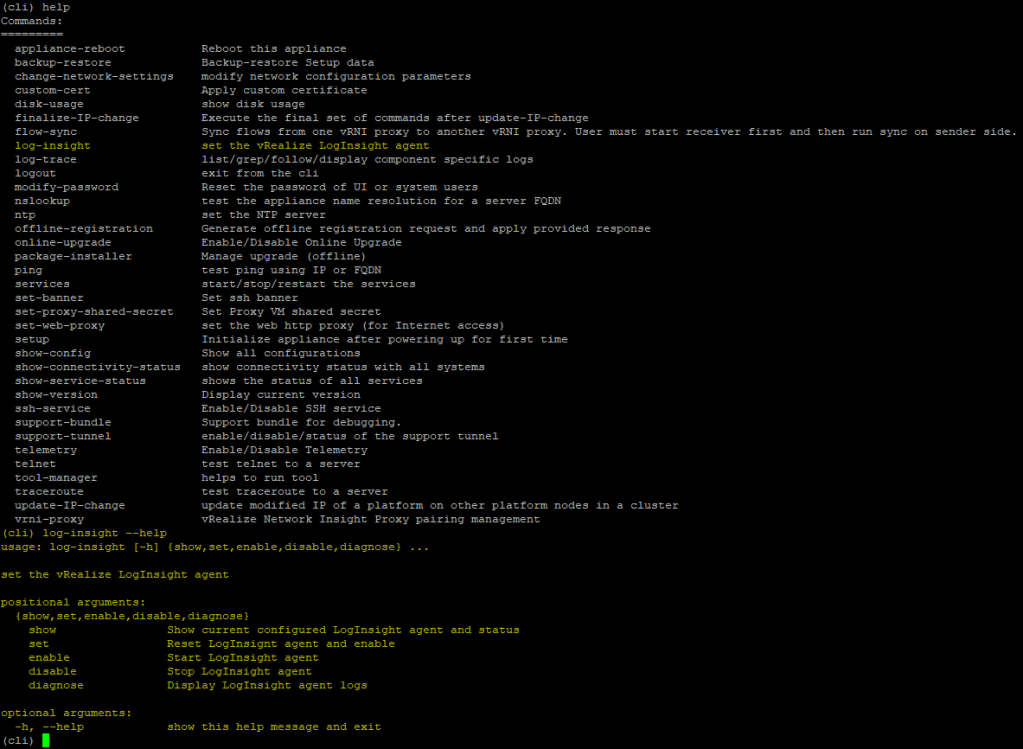
Enable liagent
To enable vRLI Agent and point it to your vRLI server/cluster’s (preferably the vRLI VIP FQDN), type ‘log-insight set -ip-fqdn <FQDN_of_vRLI> -–port 9543‘, replace <fqdn_of_vrli> with the correct FQDN:
(cli) log-insight set -ip-fqdn <FQDN_of_vRLI> -–port 9543

 Validating server reachability for <FQDN_of_vRLI>:9543
 Server is reachable

 Starting configuration with default tags
 Configured successfully
Verify vRLI server and port and that vRLI Agent is running ‘log-insight show‘:
(cli) log-insight show

Checking the status of Loginsight agent
Log Insight agent is up and <strong>running</strong>
Log Insight agent configuration details :-
        Log Insight server name : <strong><FQDN_of_vRLI></strong>
        Log Insight server port : <strong>9543</strong>
        Tags used : { "__vrni_product":"vrni", "__vrni_vrole":"proxy", "__vrni_did":"DZZZZZT", "__vrni_iid":"ID7XXXXXXXXXXXXXXXXXXXXRRI"}
If you run ‘log-insight diagnose‘ now, you would see error messages about certificate problems, as shown further up. We will now fix this by getting the correct PEM certificate file and use it.
Create vRLI PEM certificate file
On the vRNI node, run ‘openssl s_client -showcerts -connect <FQDN_of_vRLI>:9543‘ command to connect to vRLI to see the certificate chain. Then get all the certificates from the output, start at the top, and get them all into a file in the same order. You need to include the “-----BEGIN CERTIFICATE-----” and “-----END CERTIFICATE-----” on all certificates. Depending on how long the chain are (rootCA, intermediate CA(s), vRLI certificate), you should have a file like this:
-----BEGIN CERTIFICATE-----
MIIIITCCBgmgAwIBAgITKgAAADGgLjHmWYG9twAAAAAAMTANBgkqhkiG9w0BAQsF
ADCB9jELMAkGA1UEBhMCTk8xDTALBgNVBAcMBE9zbG8xGTAXBgNVBAoMEFN0YXRl
...
VxfUqNmZYGHe3xc6azZbv/07XvanHyYWm4ngFerzx1TFYU5PdQOeCtbitlcFaUFh
OQ1orwT06CV4xx8ch9fk0kSFJ+u3
-----END CERTIFICATE-----
-----BEGIN CERTIFICATE-----
MIIIGDCCBgCgAwIBAgIBBzANBgkqhkiG9w0BAQsFADCByDELMAkGA1UEBhMCTk8x
...
QzO9P4sLzfB5FNMNJbJuGHRppr5qt3pyQauqSaBYC2ZDWuT/c/kJe5UNeZixSarP
R3W6CU9J+AWc04bb
-----END CERTIFICATE-----
-----BEGIN CERTIFICATE-----
MIIGojCCBIqgAwIBAgIBATANBgkqhkiG9w0BAQsFADCByDELMAkGA1UEBhMCTk8x
...
olx/qhjEz6BMkE1zSCFflxQqea2sh1egVXKZs/Ld+pD/cbmMYxkuMFmSqmhh9XRv
WnBSKcSgj4a73q26YupIiFZRdbMlPg==
-----END CERTIFICATE-----
I recommend you save it to “/etc/ssl/company-ca-chain.pem“. We will use this to make liagent accept the SSL handshake with vRLI server/cluster.
With the PEM file at hand, edit the (correct) liagent config file: “/var/lib/loginsight-agent/liagent.ini“. Change/set the following four variables, and leave the rest as-is for now:
proto=cfapi
ssl=yes
ssl_ca_path=/etc/ssl/company-ca-chain.pem
max_disk_buffer=2000
With that saved, restart liagent by running (as root) “/etc/init.d/liagentd restart” and verify the service is running with “/etc/init.d/liagentd status“:
root@vrni-proxy-release:/var/lib/loginsight-agent# /etc/init.d/liagentd restart
[ ok ] Restarting liagentd (via systemctl): liagentd.service.
root@vrni-proxy-release:/var/lib/loginsight-agent# /etc/init.d/liagentd status
● liagentd.service - Log Insight Agent
   Loaded: loaded (/usr/lib/systemd/system/liagentd.service; enabled; vendor preset: enabled)
   Active: active (running) since Tue 2021-07-20 10:47:37 UTC; 3s ago
     Docs: https://docs.vmware.com/en/vRealize-Log-Insight/index.html
  Process: 46034 ExecStart=/bin/bash -c /usr/lib/loginsight-agent/bin/liagent --daemon --user `/etc/init.d/liagentd user` `/etc/init.d/liagentd params` (code=exited, status=0/SUCCESS)
 Main PID: 46069 (liagent)
    Tasks: 25 (limit: 4915)
   CGroup: /system.slice/liagentd.service
           └─46069 /usr/lib/loginsight-agent/bin/liagent --daemon --user root

Jul 20 10:47:37 vrni-proxy-release systemd[1]: Starting Log Insight Agent...
Jul 20 10:47:37 vrni-proxy-release systemd[1]: Started Log Insight Agent.
You should also run “log-insight diagnose” as consoleuser and vRLI CLI to verify it now connects successfully to vRLI over SSL:
(cli) log-insight diagnose

<snip>
2021-07-20 10:47:38.226697 0x00007f72deffd700 <trace> CFApiTransport:130 | Connecting to server <FQDN_of_vRLI>:9543
2021-07-20 10:47:38.257234 0x00007f72deffd700 <trace> CFApiTransport:152 | Connection to <FQDN_of_vRLI>:9543 successfully established
</snip>
You should now have a working log forwarding to vRLI using the Log Insight Agent over SSL.
Don’t forget that this needs to be done manually on all vRNI nodes. One tip is to either scp the “company-ca-chain.pem” file to the other nodes or just copy’n paste the content into a file on the other nodes.
Troubleshooting
Logs
If you need to check the logs, they are found /var/log/loginsight-agent/ and are named in the naming scheme of “liagent_<date>_<incremental number>.log“. Example: liagent_2021-07-11_22.log
Diagnose command
As consoleuser, in SSH, run ‘log-insight diagnose‘:
(cli) log-insight diagnose

Diagnostic details of Log Insight agent
2021-04-30 08:22:53.515144 0x00007f4bebe3a700 <trace> FLogCollectorEx:478| Subscribed to channel <launcher>.
2021-04-30 08:22:53.515318 0x00007f4bbffff700 <trace> Logger:209         | Thread "FLogThreadPool" has id 0x7f4bbffff700
... (many lines of traces/warnings/errors) VMnic
VMnic 